QUICK START GUIDE

Getting Started with Decisions

Decisions is a secure meeting management system for Microsoft Teams and Microsoft 365. Add it to a meeting to build agendas, capture decisions and action items, and get optional AI recaps, turning meetings into results.

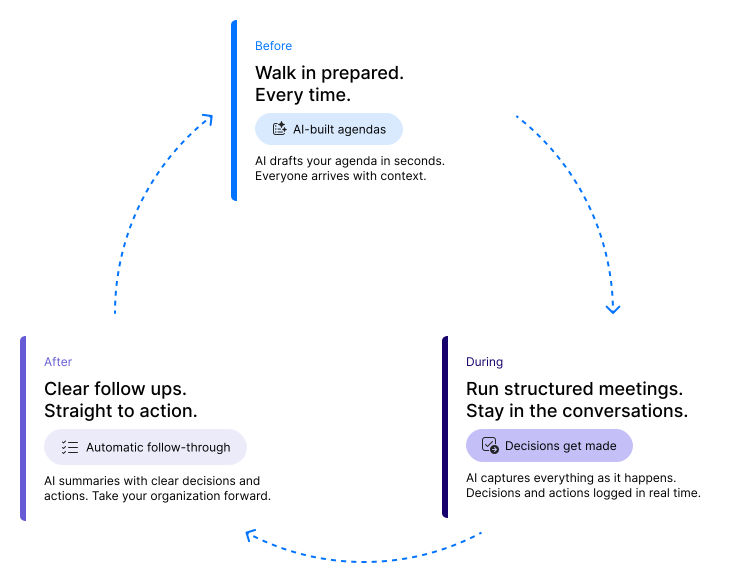
Meeting Lifecycle Graphic
WHAT CHANGES

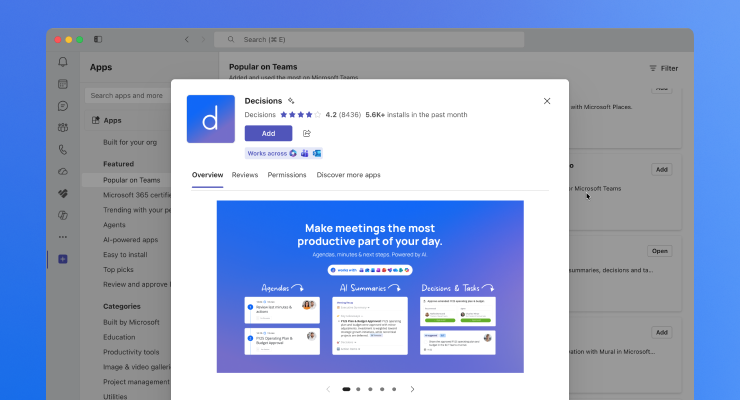
How do I add Decisions to a Microsoft Teams meeting?

If your administrator has already rolled out Decisions, you don't need to install anything. Open a Teams meeting, add Decisions from the meeting side panel or apps menu, and pin it so it's one click away. If it hasn't been rolled out yet, ask your administrator to add Decisions for your organization first.
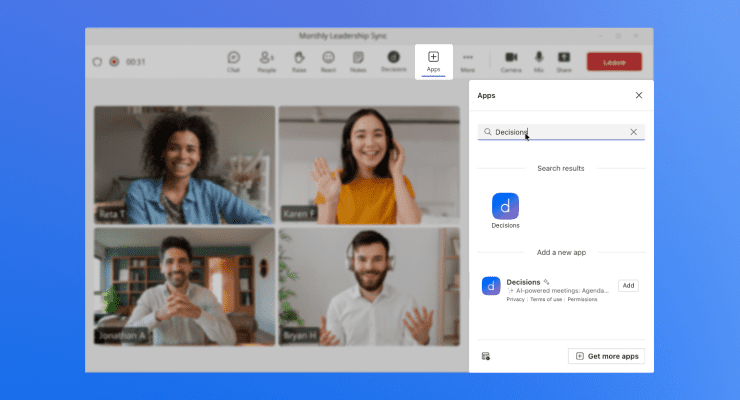
Adding Decisions to a Microsoft Teams meeting from the meeting side panel

Find it in a meeting

Join or start a Teams meeting, open the side panel, and select Decisions.

Pinning the Decisions app in Microsoft Teams to keep it one click away

Pin it for next time

Right-click the Decisions app in Teams and choose Pin so it stays handy.
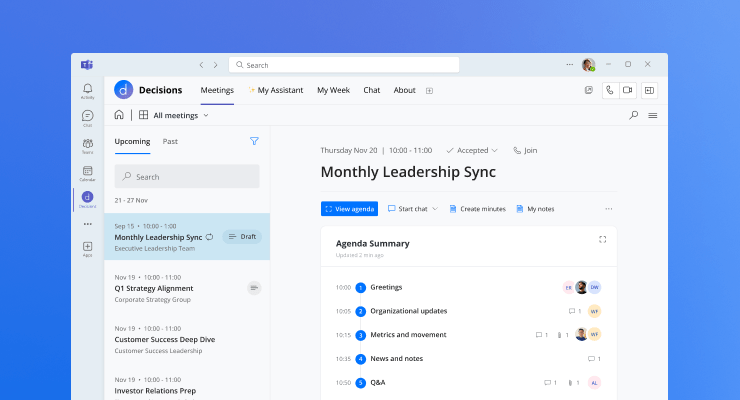
Opening Decisions before a meeting to prepare the agenda and after to review minutes

Works before and after

You can also open Decisions to prepare an agenda ahead of time or review minutes later.

A Microsoft Teams administrator adding Decisions for the organization

Don't see it?

Ask your Microsoft Teams administrator to add Decisions for your organization.

5 STEP QUICK GUIDE

How do I run my first meeting with Decisions?

You can run your first structured meeting in about five minutes . Just follow the five steps below.
1

Add Decisions

Open a Microsoft Teams meeting and add Decisions from the side panel or apps menu.

2

Build an agenda

Let AI draft one, start from a template, or build your own, so everyone knows the plan and timing.

3

Run the meeting

Work through each item with the time tracker, take live notes, and use secure voting when you need a group decision.

4

Capture automatically

As you meet, decisions and action items are captured for you, each with an owner and due date. No manual note-taking.

5

Share minutes

Send the meeting minutes: a clear summary of what was discussed, decided, and to follow up on.

THE WHOLE MEETING LIFECYCLE

What can I do before, during, and after a meeting?

Decisions supports the whole meeting lifecycle. Here's what you can do at each stage: before, during, and after.
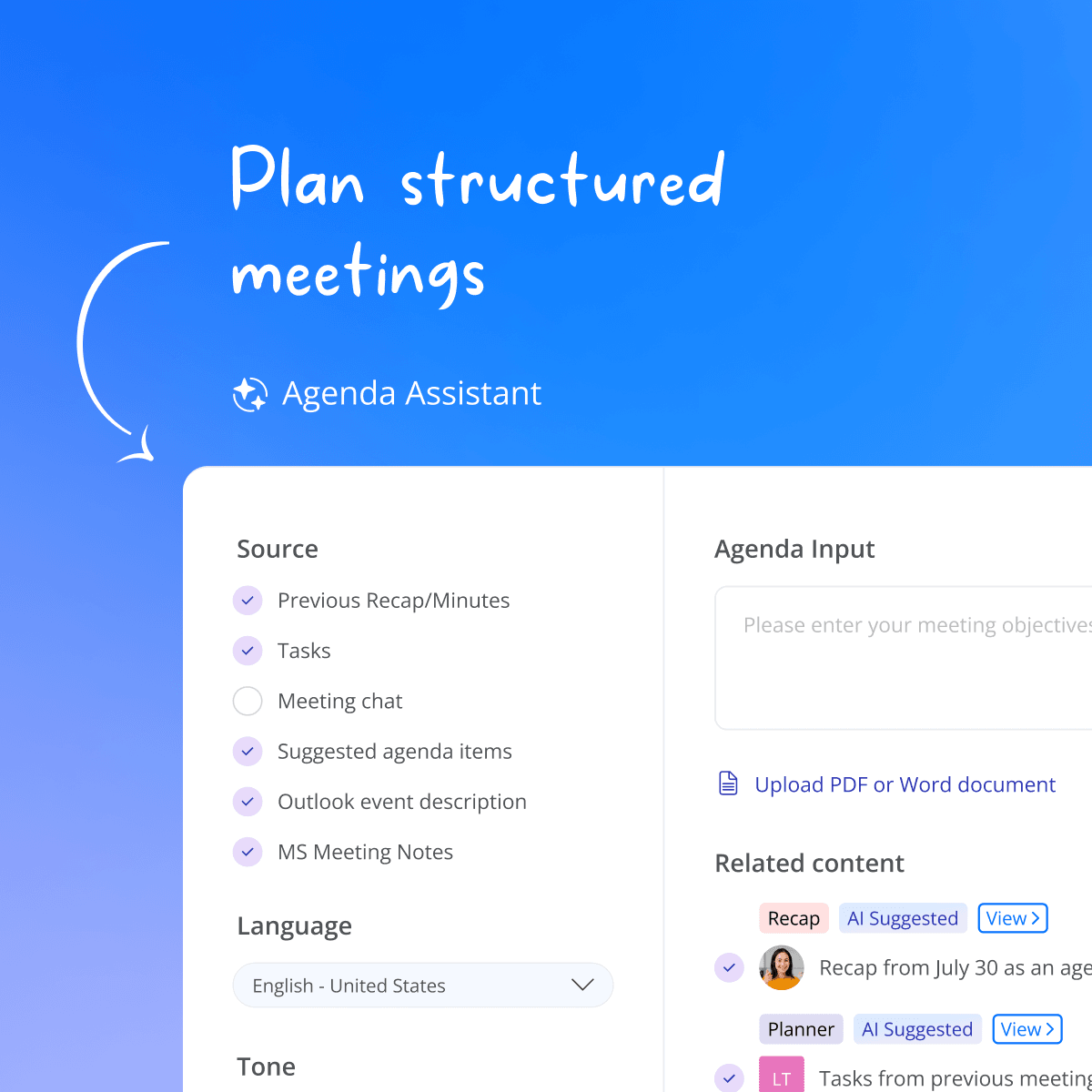
Decisions AI Agenda Assistant in Microsoft Teams drafting a meeting agenda from past recaps, action items, and Outlook events, with language and tone options.
Before the meeting

Show up prepared

Agenda builder
Drag and drop items, set time per topic and type, in draft until you publish.
Agenda templates
Personal, team, and organization-wide templates for every recurring meeting.
AI agenda
An optional AI draft from your meeting context, to review and refine before publishing.
AI Assistant
Daily briefings, scheduling, reminders, recaps, and more, all from your AI Assistant.
Proposed decisions
Stage a proposed decision on any agenda item, ready to vote on and finalize.
Co-authoring & collaboration
Build the agenda together, with suggested and requested items.
Guest & participant management
Control who sees what, including external guests.
Meeting book
Export the agenda and every attached document in one branded PDF, ready to review and annotate in the mobile app.
Meeting Engagement Score™
See how prepared participants are before the meeting starts.
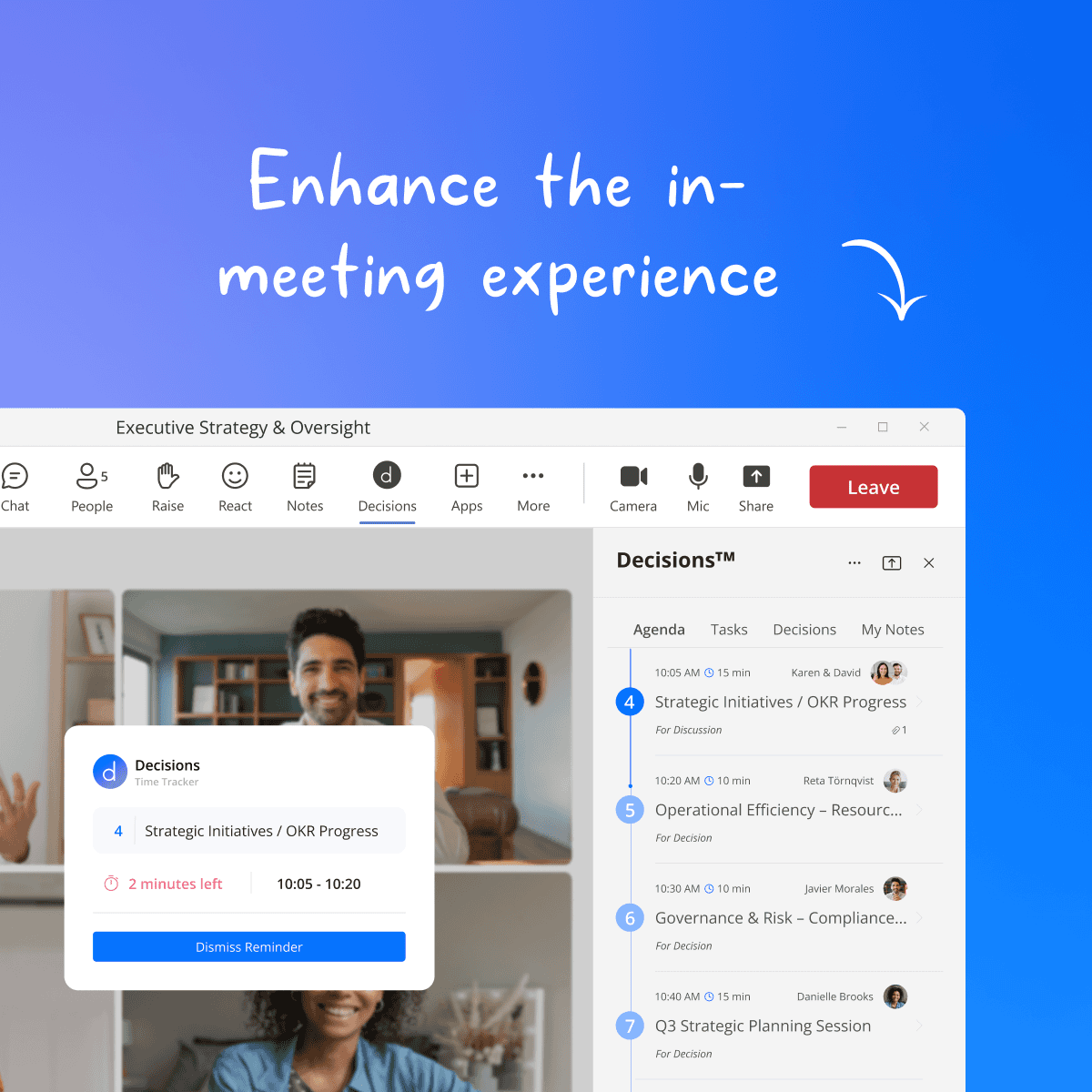
Decisions side panel in a live Microsoft Teams meeting showing the timed agenda, assigned presenters, and a Time Tracker with two minutes left on the current topic.
During the meeting

Focus on what matters

Teams side panel
Run the full agenda inside the meeting window, no switching apps.
Mobile app
Capture in-person and hybrid meetings on your phone, then turn them into a quick recap or formal minutes.
Time tracker
Countdown per topic with a one-minute warning, so every item gets its time.
Assigned presenters
Everyone knows who presents what, and when.
Meeting slides
Turn your agenda into a ready-to-present slide deck.
Secure voting
Formal votes recorded directly on the agenda item.
Decisions & action items
Outcomes recorded per topic as they happen, manually or automatically.
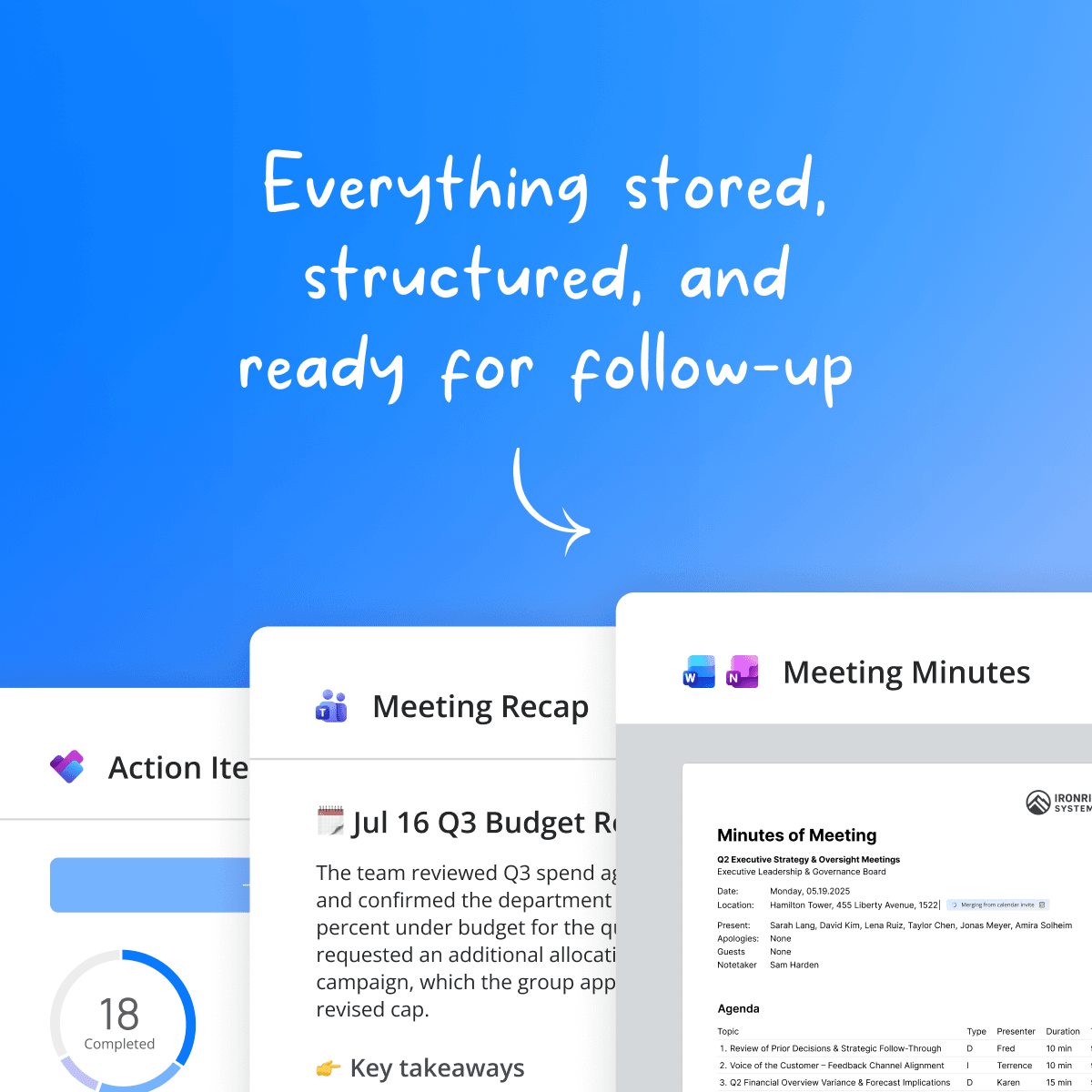
Decisions AI recap in Microsoft Teams chat summarizing a leadership meeting with key takeaways, decisions, and action items ready to sync to Microsoft Planner.
After the meeting

Leave with everything handled

Document it
One-click minutes
Agenda, notes, and decisions in your branded Word or OneNote templates.
AI minutes & AI recap
AI minutes and recaps built from your transcript, chat, notes, documents, and uploaded whiteboard or handwritten photos.
Approval & e-signatures
Formal review, approval, and signing.
Selective minutes distribution
Share minutes per agenda item, so confidential items stay confidential.
Meeting archive
Every agenda, minute, and decision, searchable in one place.
Follow through
Task management
Action items are synced to Microsoft Planner and To Do, with auto-created buckets.
Decision log
Proposed and final decisions, full audit trail, with historical import.
Standing agendas & backlog
Recurring items and outcomes feed into the next meeting.
And the loop closes. Open action items, standing agendas, and the backlog carry straight into the next meeting's prep, so every meeting builds on the last.

~1/3

Office workers can spend up to a third of their work week in meetings. Decisions helps you make that time count, with clear agendas, recorded outcomes, and automatic follow-through.
DECISIONS AI

How do the AI features work?

AI in Decisions is built in and optional. You choose when to use it. When enabled, it can draft your agenda, summarize your meetings, assist you personally, and connect meeting knowledge to the assistants you already use.

AI agenda

Let AI draft a suggested agenda for your meeting, then edit it to fit, so there's no blank page to start from.

AI recaps & minutes

Get an automatic summary of the discussion, decisions, and action items after a meeting, ready to review and share.

AI Assistant

Your personal AI meeting agent helps you prepare before a meeting, catch up on what you missed, and follow up afterward.

Works with Copilot, Claude & ChatGPT

Connect your meeting knowledge to the AI assistants you already use, including Microsoft 365 Copilot, Claude, and ChatGPT, always following your tenant's existing permissions.

  • Week 1

    Kickoff & onboarding call

    We assign licenses, configure your workspace, and plan the rollout with you.

  • Week 2

    First training session

    A guided session gets your team running real meetings in Decisions, using a custom template built for you.

  • Weeks 3–4

    Advanced training

    Go deeper on features, or expand the rollout to more teams. Many organizations start with champions and grow from there.

  • Week 6

    Post-training check-in

    We review how it’s going, answer questions, and offer a focused Q&A session if it helps.

  • Month 2

    Feedback & optimization

    We fine-tune templates and adoption together so Decisions fits the way your teams meet.

  • Month 6

    Business review

    A business review looks at the results you’re seeing and plans what comes next.

HELP

Where can I get help?

Knowledge base

Searchable how-to articles and step-by-step guides for every part of Decisions.

Browse the knowledge base support.meetingdecisions.com

Live training & webinars

Join a guided session and get walked through the essentials, live.

See upcoming sessions Guided sessions on the essentials

Contact support

Need assistance? Email us for the fastest response. Our team is ready to help with any question.

Email support support@meetingdecisions.com
GET STARTED

Ready to run your first meeting?

Open Decisions in a Microsoft Teams meeting and turn your next conversation into clear decisions and follow-through.